How to use Pulsoid with your Amazfit device
Connecting your Amazfit device to Pulsoid allows you to display real-time BPM on Twitch, Kick, YouTube, or VRChat. While dedicated chest straps or armbands offer the highest accuracy, Amazfit devices are a great way to start heart rate streaming for free.
Requirements & Compatibility
To connect directly via the official Pulsoid app, your Amazfit watch must run Zepp OS 3.0 or newer and support the native Heart Rate Push feature.
Supported Amazfit Devices
- T-Rex Series: T-Rex 3, T-Rex Ultra
- Balance & Falcon: Amazfit Balance, Amazfit Falcon
- Cheetah Series: Cheetah Pro, Cheetah Round
- Active Series: Active, Active 2
- Bip Series: Bip 5, Bip 6
Note: If your model is not listed or lacks Heart Rate Push support, see the alternative connection method below.
Method 1: Connect via Heart Rate Push
Follow these steps to pair your Zepp OS Amazfit watch directly with Pulsoid:
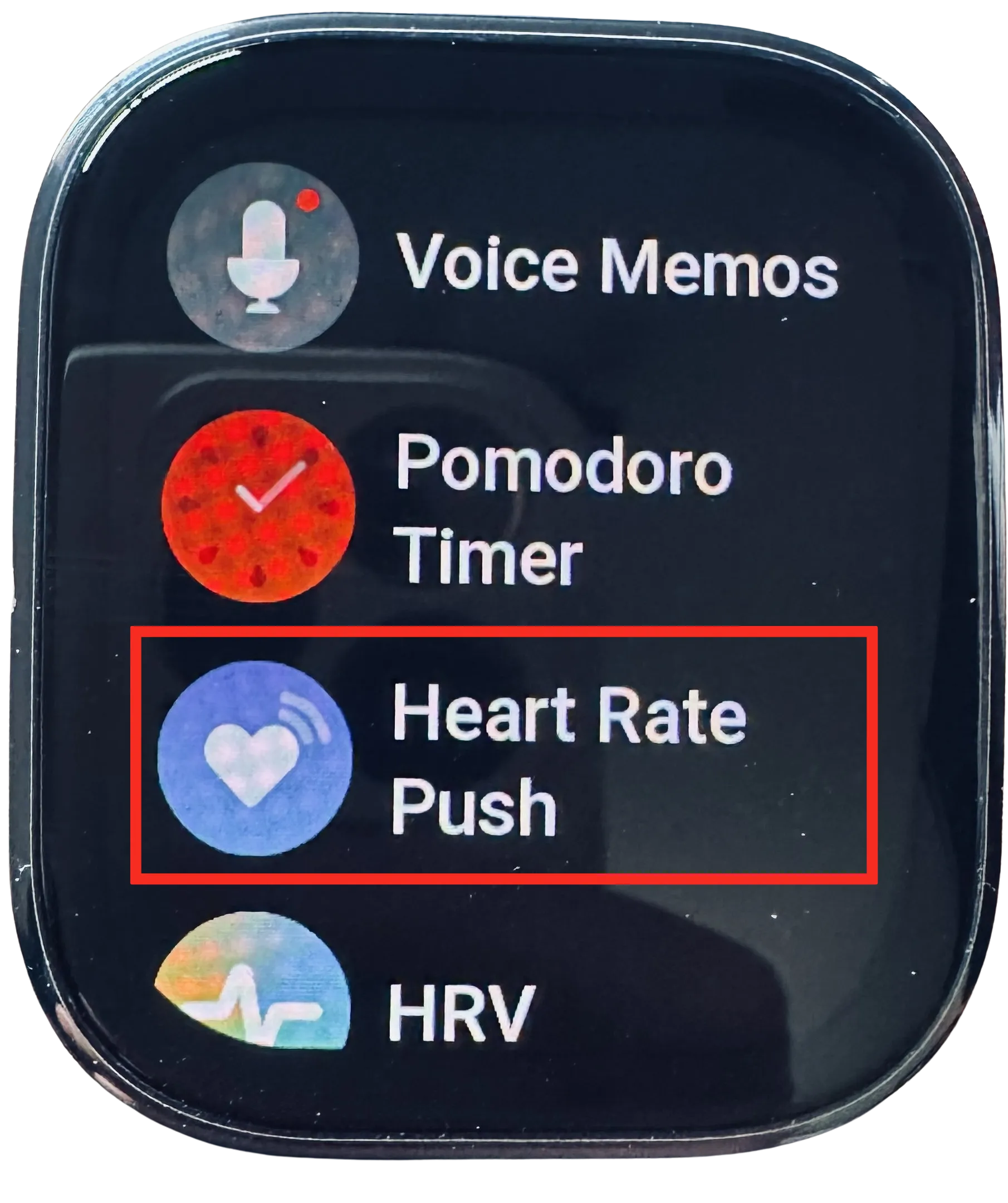
- Open watch Settings → enable Heart Rate Push.
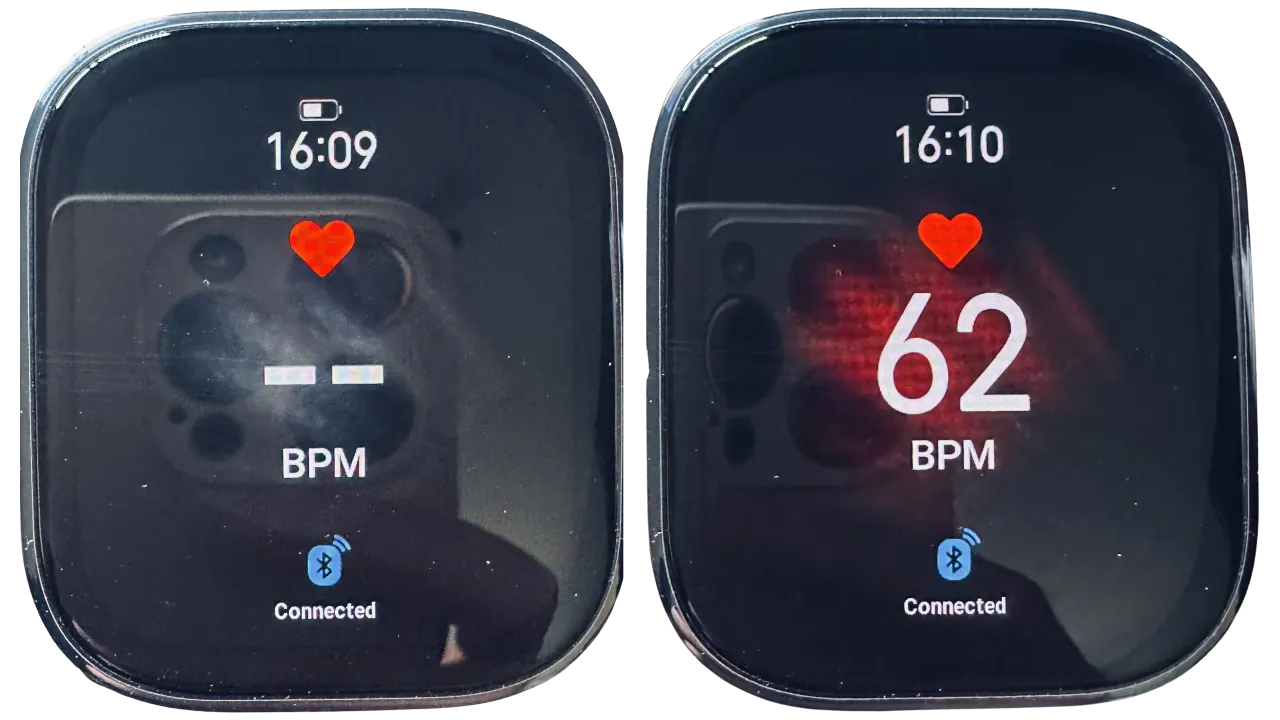
- Wait a few seconds until the screen indicates active heart rate sharing.
- Install the Pulsoid mobile app (iOS / Android).
- Open the app and find your Amazfit watch in the list of available BLE devices.
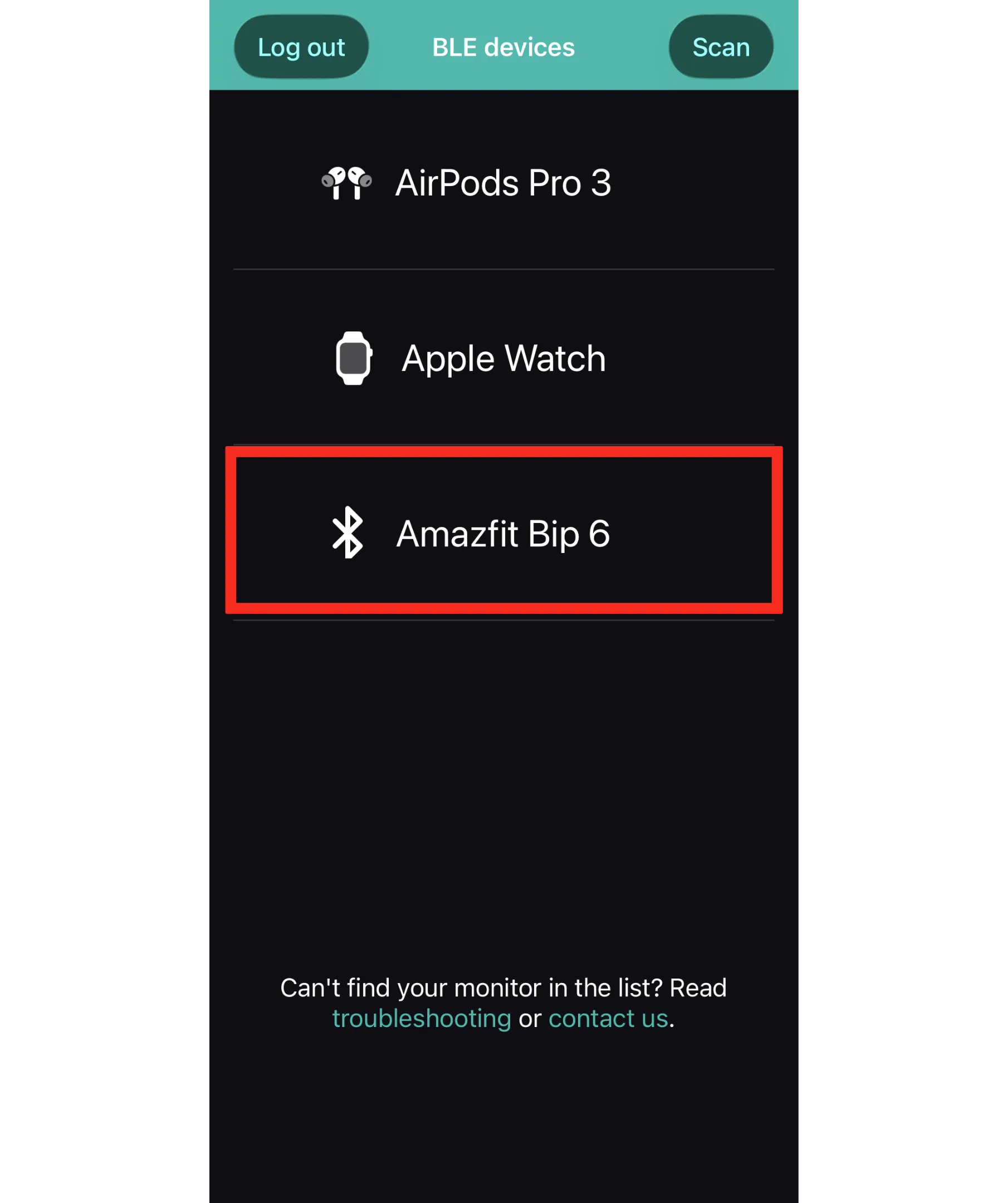
- Tap your device name to complete the connection.
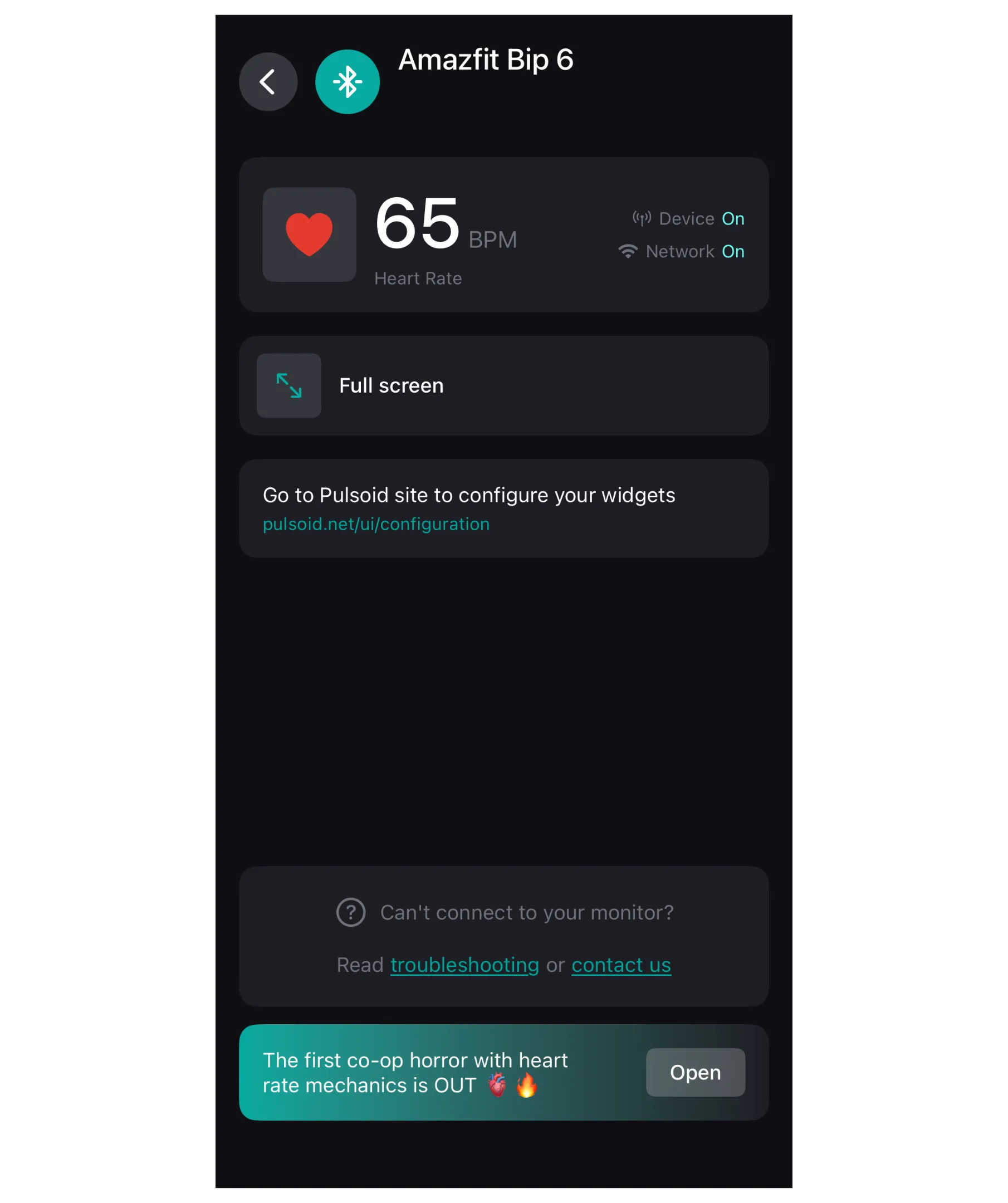
Pro Tip: You can also enable Heart Rate Push directly from your phone via the Zepp app:
Zepp App → Device → [Your Device] → Health Monitoring → Heart Rate Push.
Method 2: Connect Amazfit Watches Using Notify App
If your Amazfit model does not feature native Heart Rate Push, you can bridge the connection using the Notify for Amazfit & Zepp app (Android only).
- Install Notify for Amazfit & Zepp and pair it with your watch.
- Tap the Envelope icon (top right) → open the Tools tab
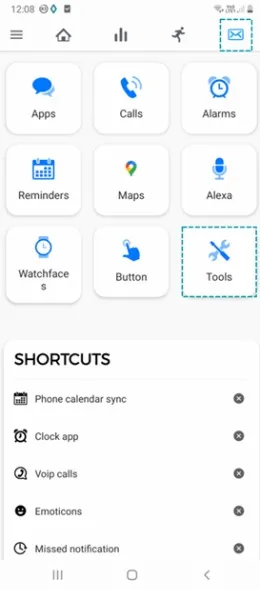
- Scroll to Amazfit discoverable and toggle it ON.
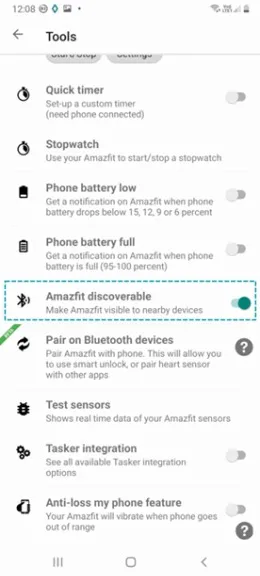
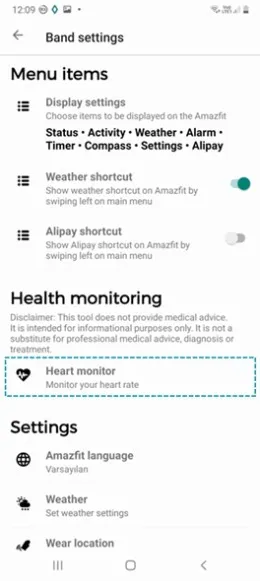
- Go to Band Settings → select Health Monitoring → tap Heart Monitor.
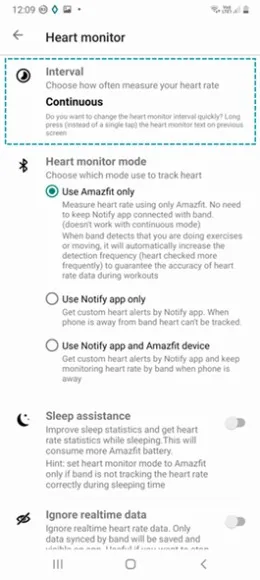
- Change the Interval to Continuous so your heart rate updates constantly without freezing on stream.
- Open the Pulsoid app, scan for BLE devices, and select your Amazfit watch.
Need Help Setting Up?
If you run into setup issues or your device isn’t detected:
- Join our community on Discord
- Contact support at support@pulsoid.net