How to show heart rate on stream using AirPods Pro 3

Want to use your AirPods Pro 3 as a heart rate monitor for streaming?
With Pulsoid, you can track your BPM in real time and show it on Twitch, YouTube, Kick, or any other streaming platform.
This guide shows how to connect AirPods Pro 3 to Pulsoid and display your heart rate on stream in just a few minutes.
How to Connect AirPods Pro 3 to Pulsoid
- Install the free Pulsoid iOS app
- Create a Pulsoid account
- Open the app and select AirPods Pro 3 from the Devices list
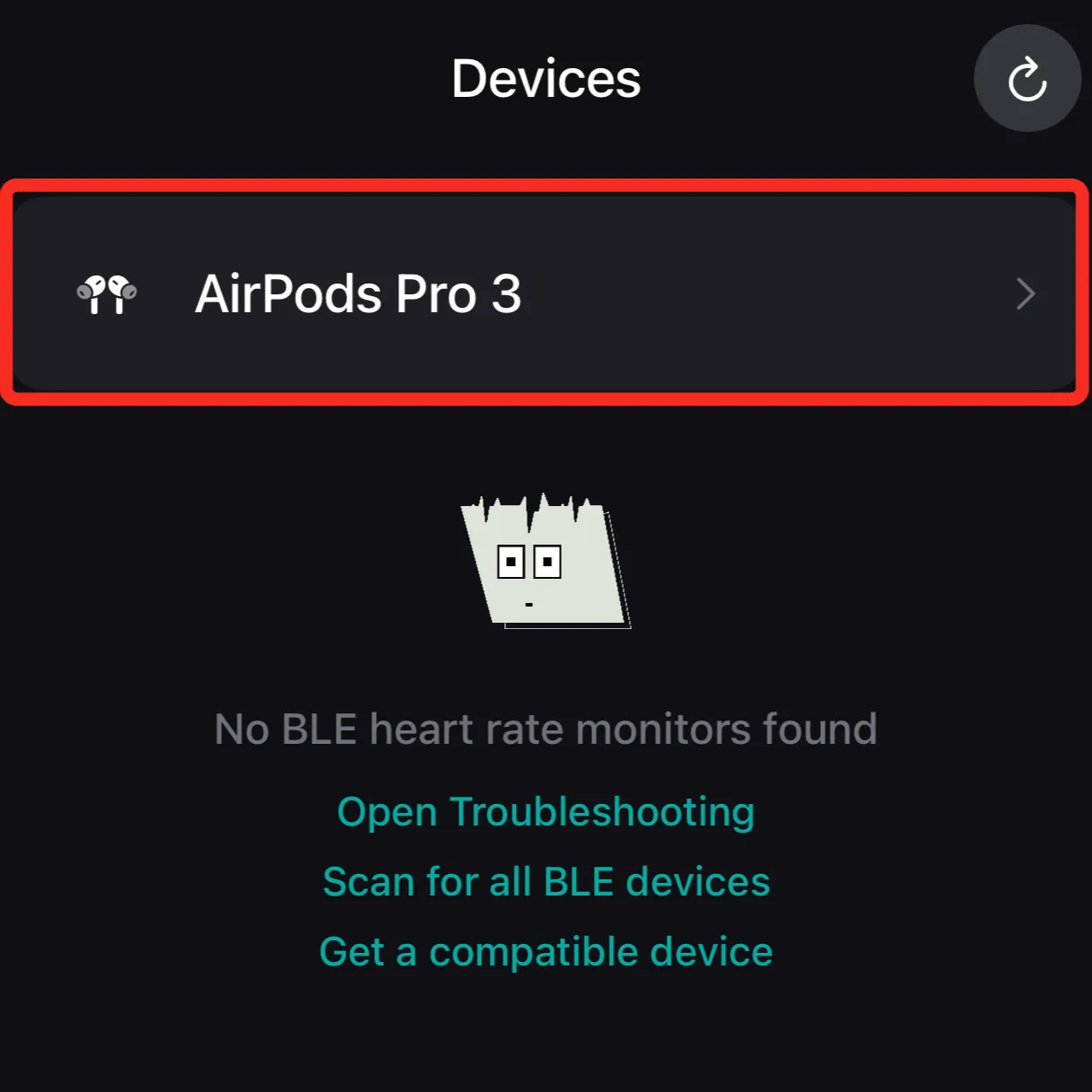
- Tap “Start”
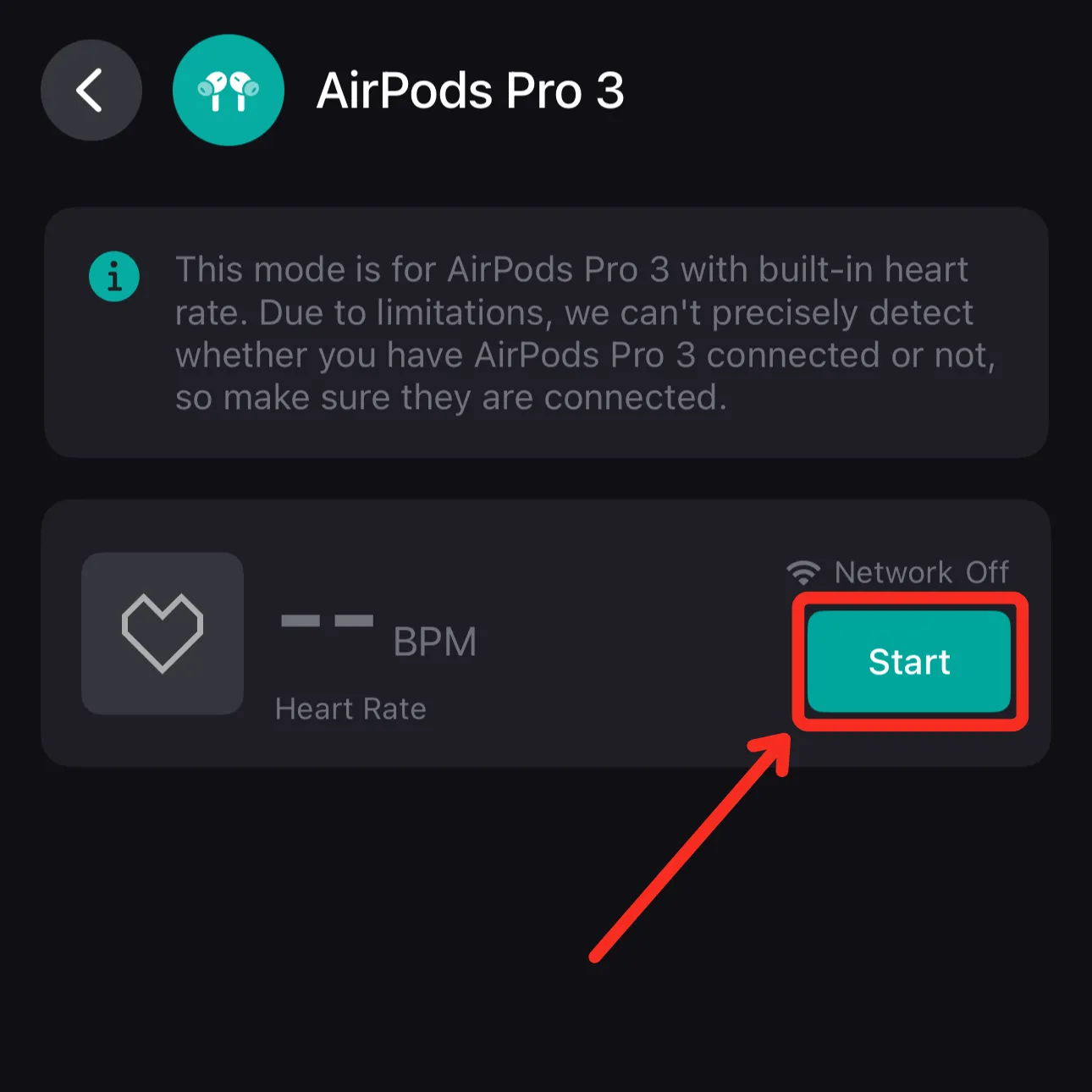
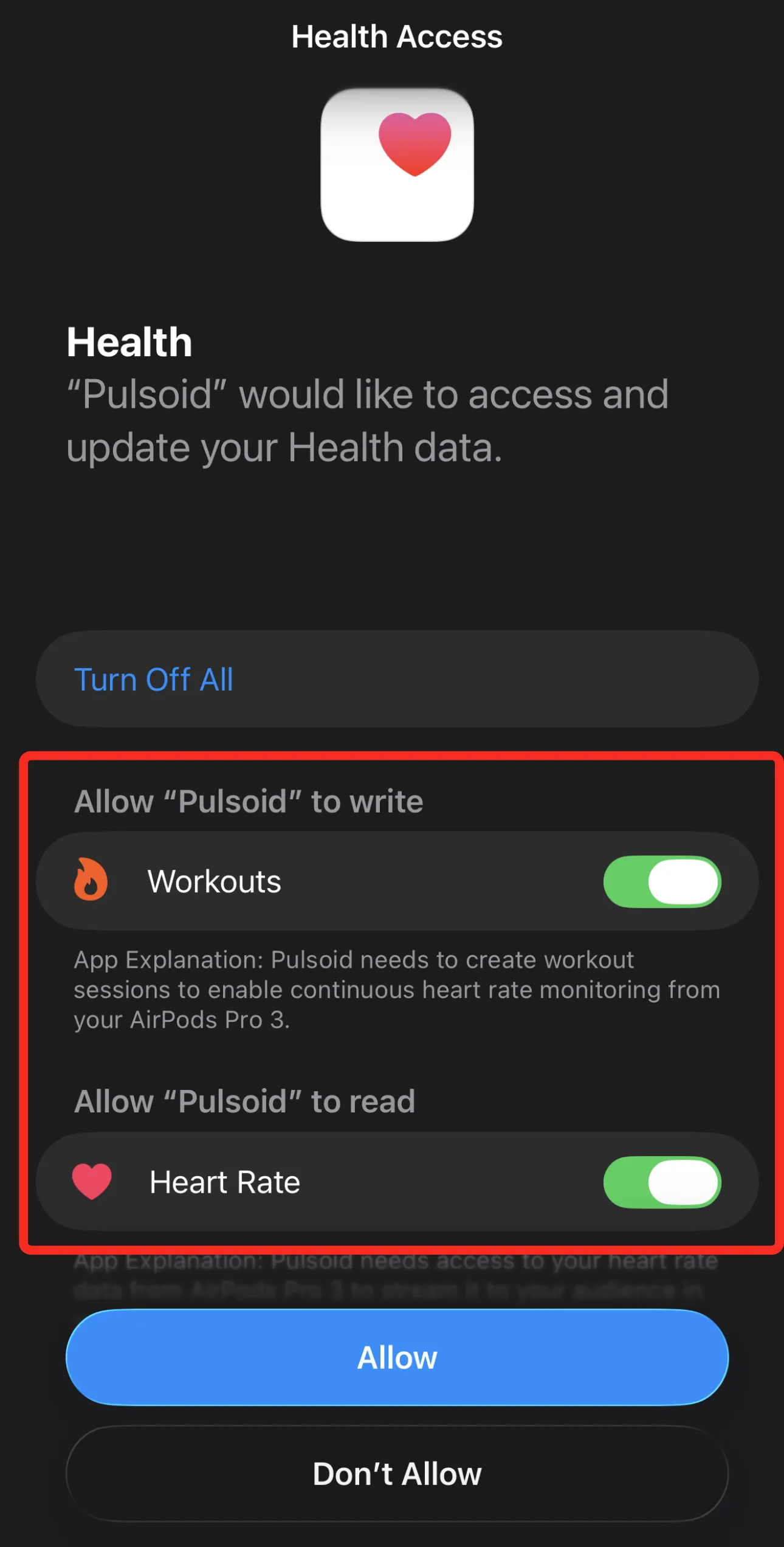
- Allow health data access:
Go to Settings → Health → Data Access & Devices → Pulsoid and enable permissions
- Wait a few seconds while the connection is established
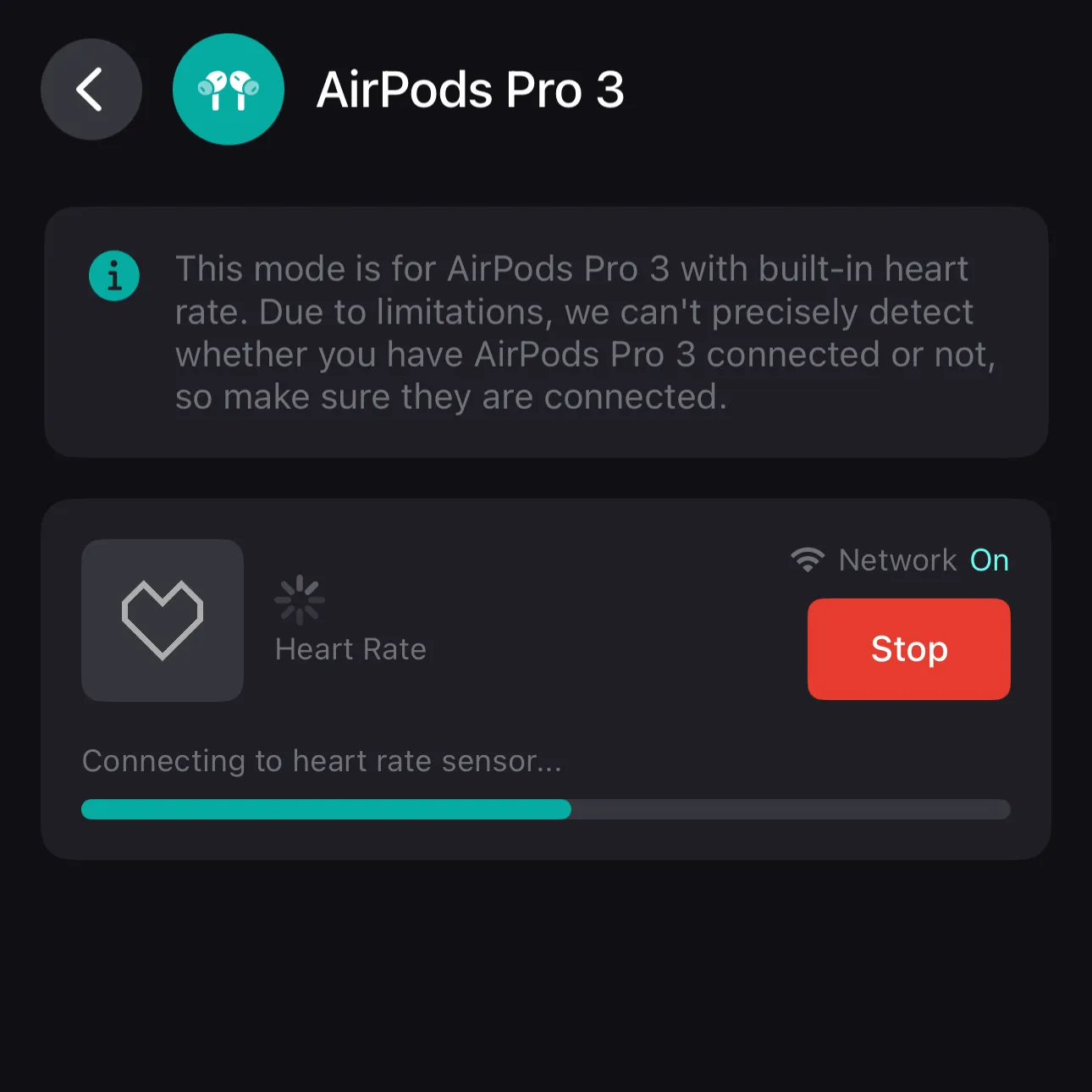
- Done! Your AirPods Pro 3 are now connected
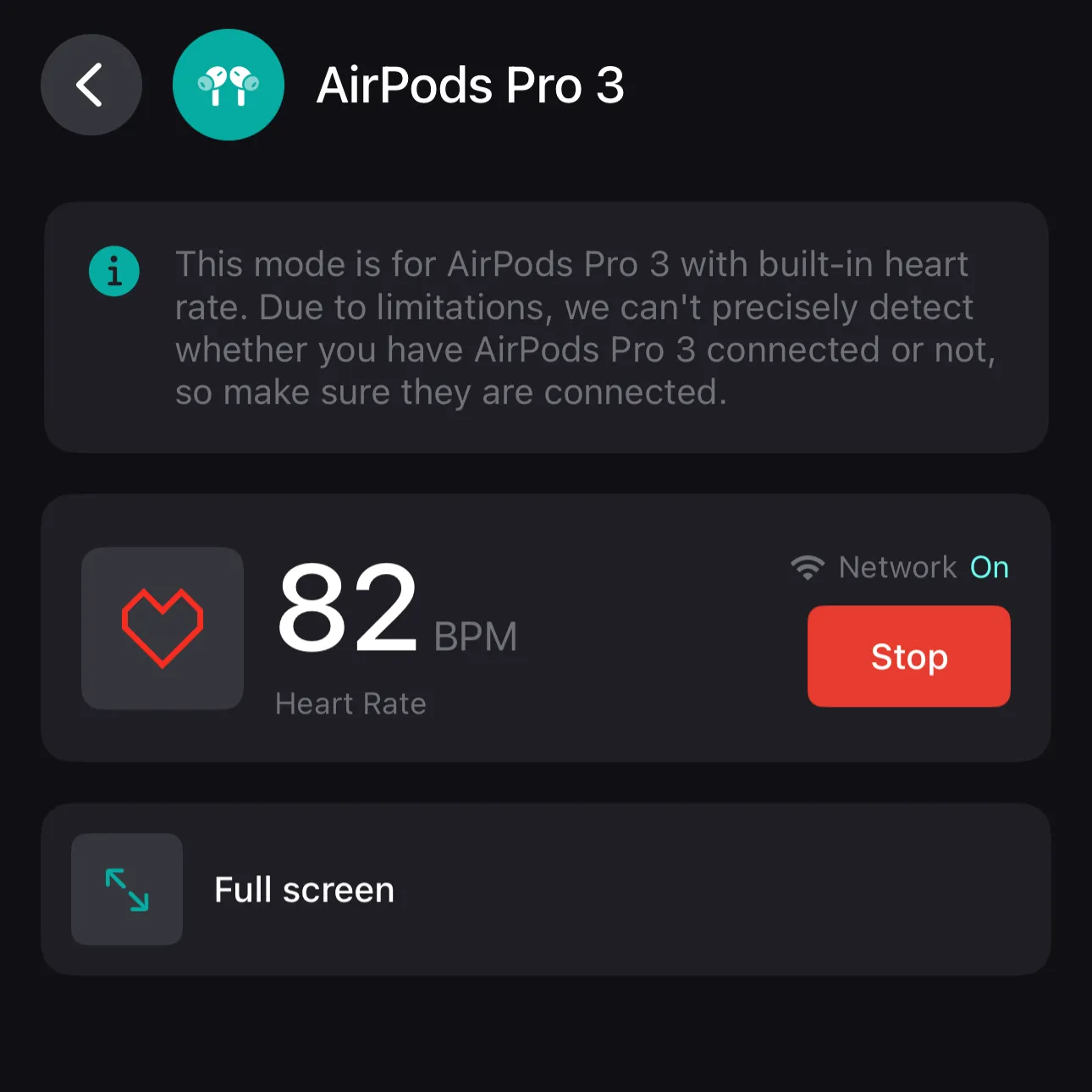
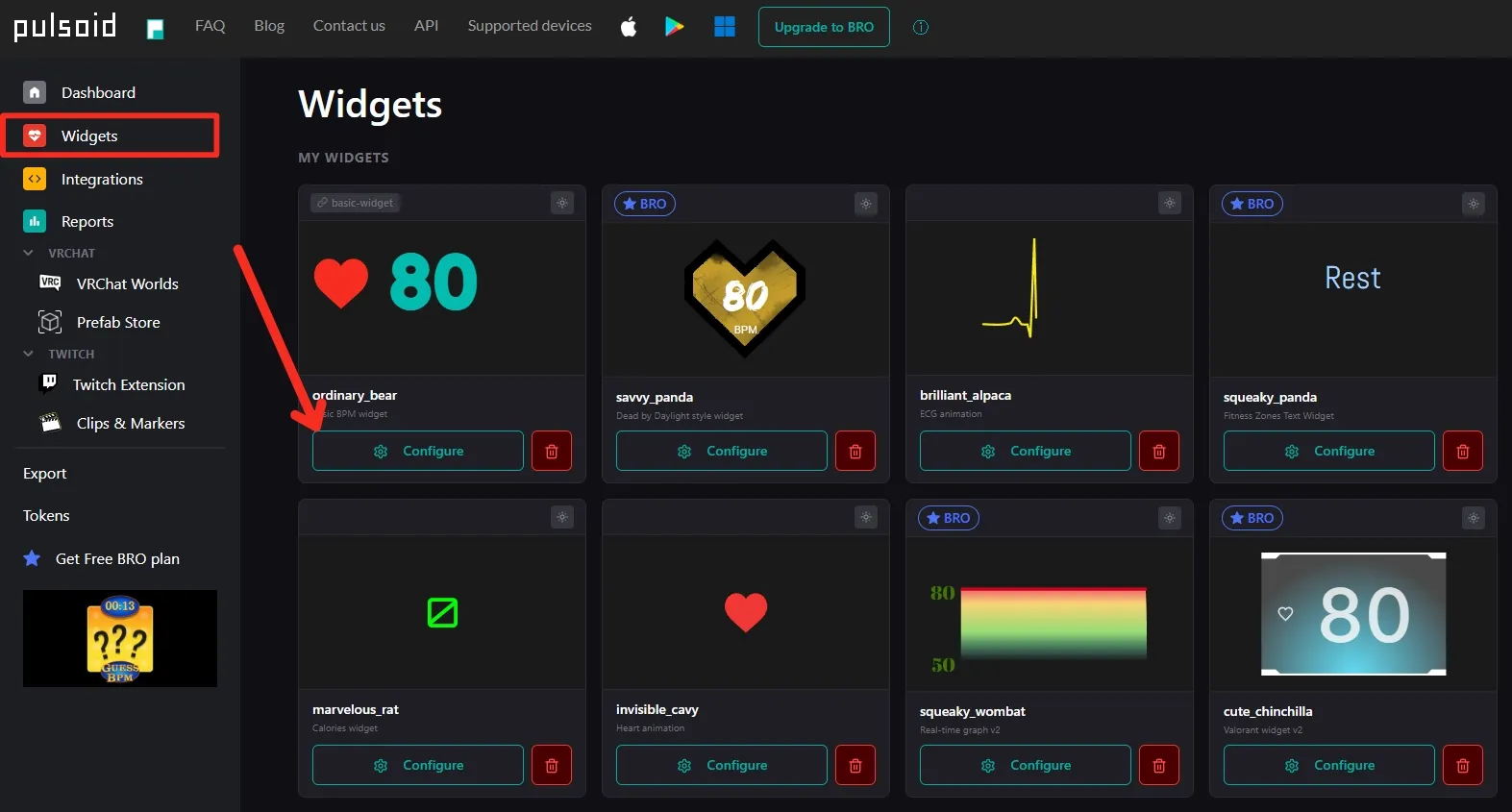
You can now configure your widget and add it as a browser source in OBS, Streamlabs, Meld, or other streaming software.
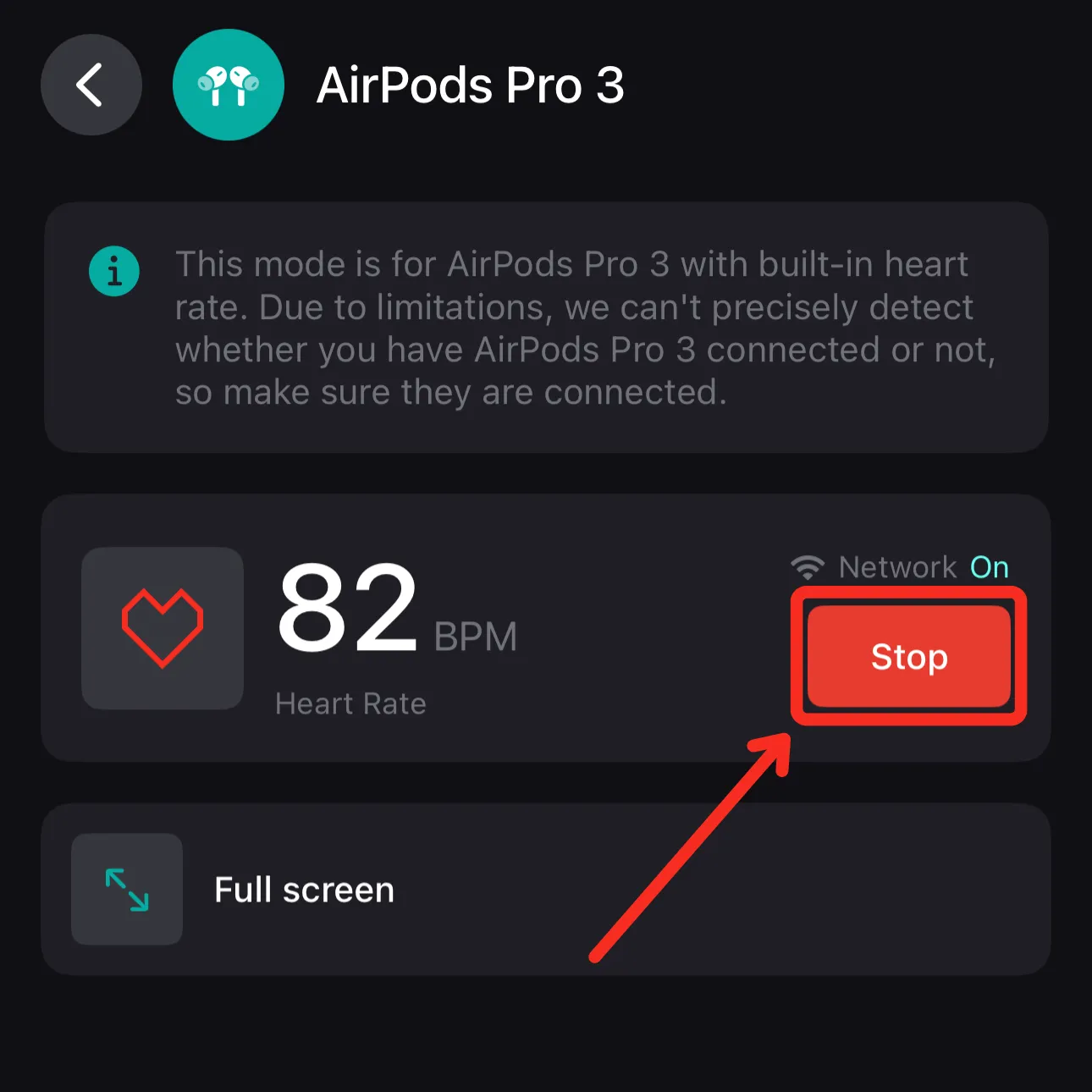
To stop tracking your heart rate, tap “Stop”.
Note: Make sure your AirPods Pro 3 fit securely in your ears for the most accurate and stable heart rate readings.
Tip: Keep your AirPods Pro 3 clean. The optical sensor can give inaccurate or unstable readings if earwax builds up on the mesh or sensor.
If you run into any issues, reach out to us on Discord or email us at support@pulsoid.net